Create, Schedule, and View the Result for Tests
A teacher can easily understand the class progress by assigning Tests to the students and grade them accordingly, these are only objective types i.e., Multiple Choice Questions based on the choice answered by the students the teacher
Based on the Curriculum the teacher was assigned the Test module will have 2 types:
Subjective Tests
Mock Tests (For Competitive Curriculum like IIT-JEE, NEET, BITSAT, etc.,)
Subjective Test
How to Create Subjective Test:
The teacher can create Subject wise tests based on the requirement, for creating a subject test follow the below steps:
After logging into your Erudex Teacher account, select the Tests module
From the top right end corner, choose Curriculum.
Toggle to Subject test (if you have assigned with Competitive Curriculum)
Choose the Subject for which you'd like to create a Tests
Click on Create button on the right side
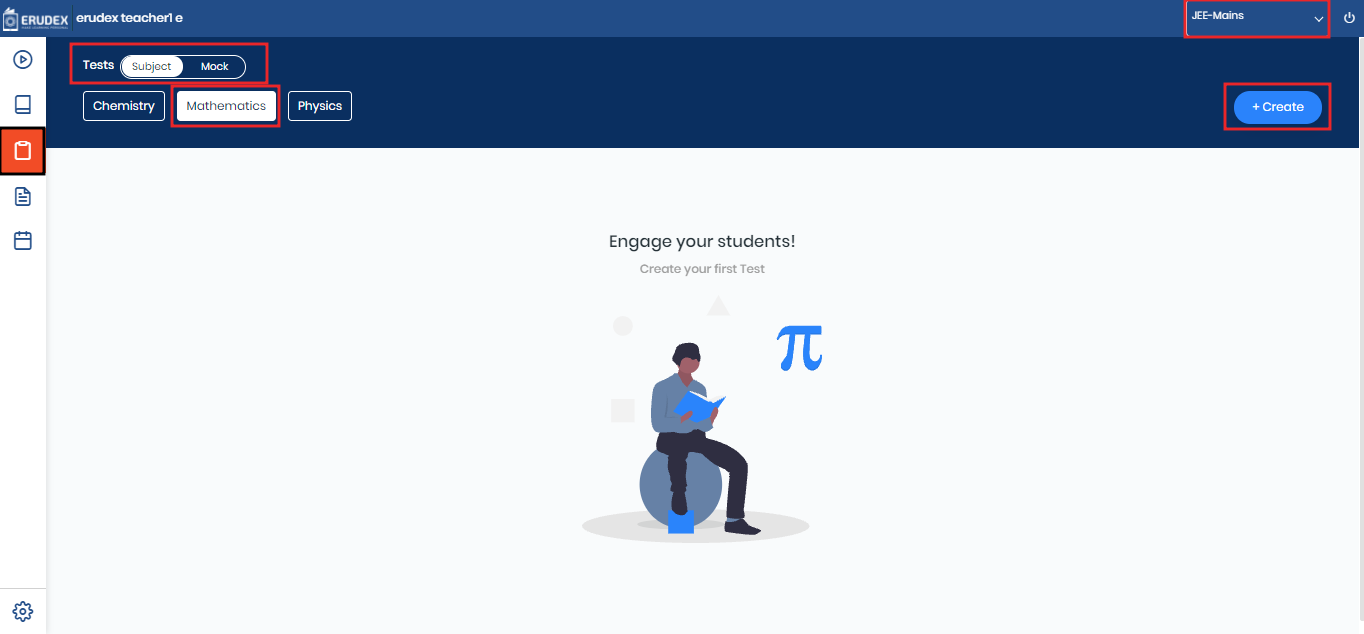
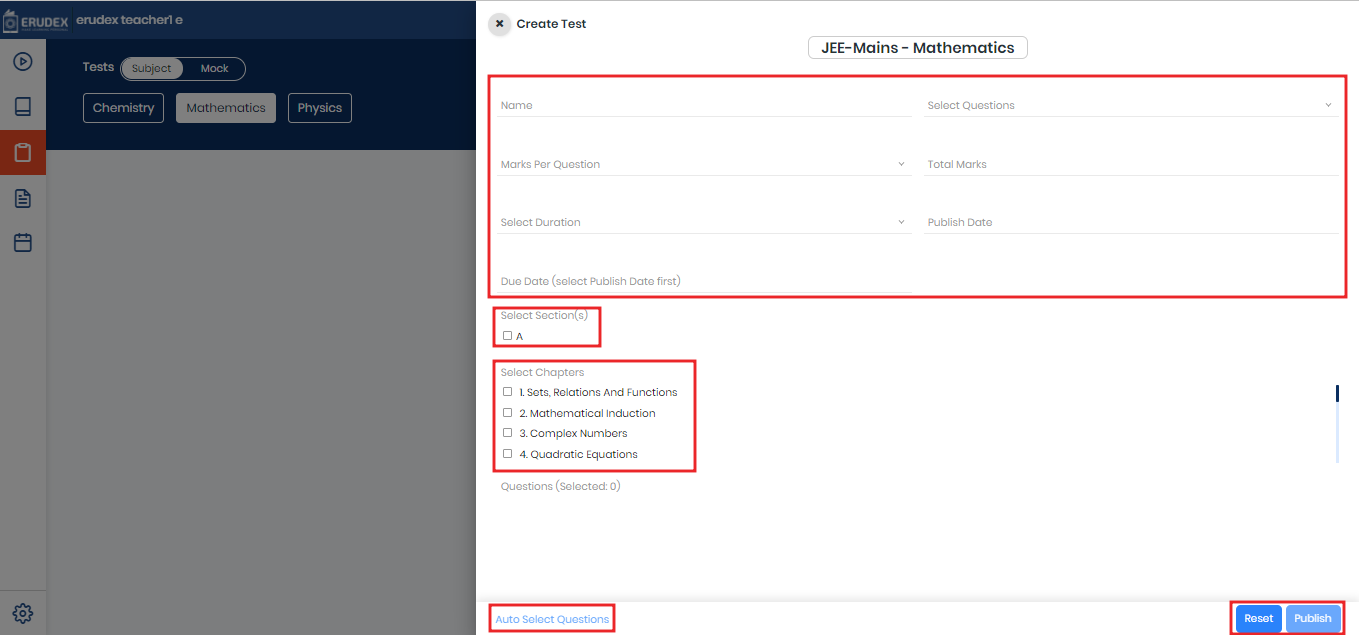
A slider will appear with the required input such as Name, No of Questions, Marks, Duration, Date (Publish date and Due Date), Section and Chapters
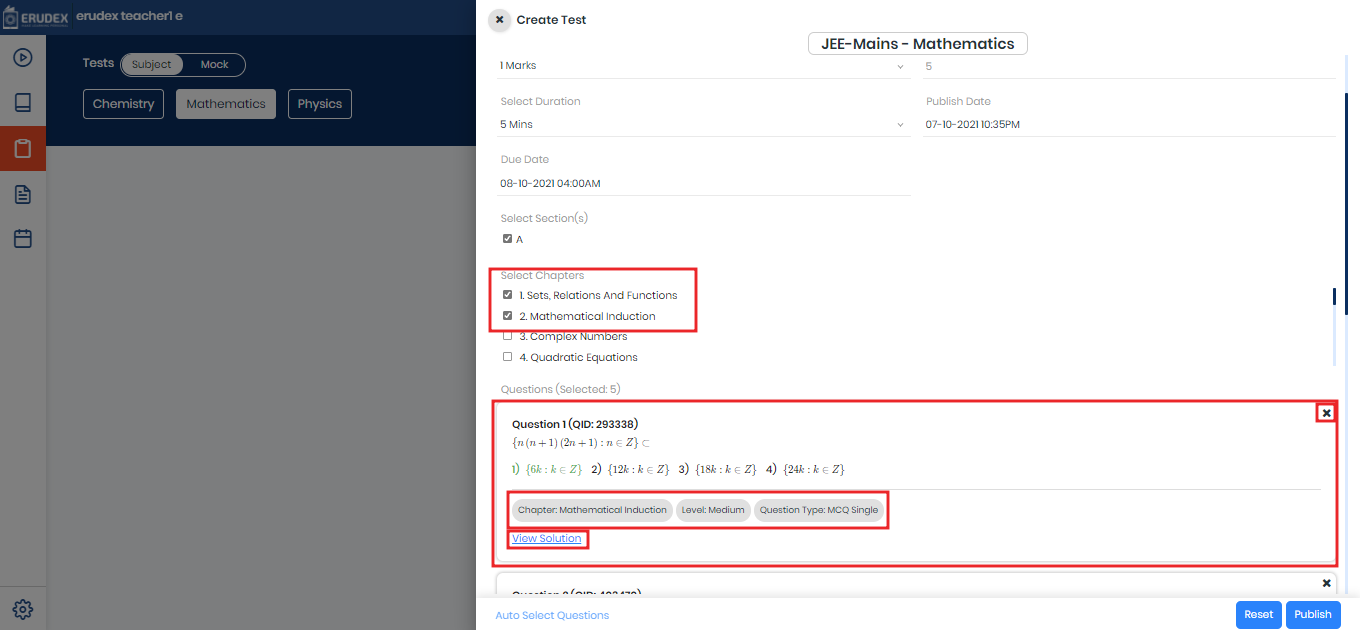
Provide the inputs in respective fields with the test details make sure you select at least one Chapter.
Fill out the Dates i.e., Publish Date which is the Start Date and Due date (*Note The min difference between Publish and Due date is min 4hrs)
Selection sections for publishing to students then Click on Auto Select Questions at the bottom left of the slider, it will automatically select the Questions based on the no of Questions and chapters selected before
The Question Card will have Chapter name, level of difficulty, Question type
Users can clear the form by clicking on the Reset button at the bottom right corner
Users can also delete the Question by clicking on the cross ( x ) button at the right of each question
if all inputs are as expected Click on the publish
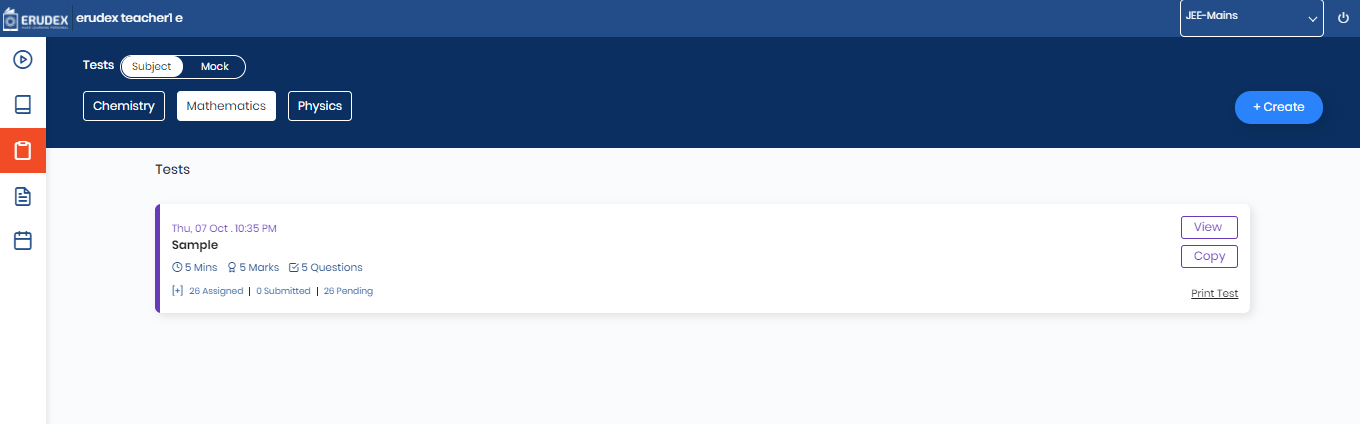
Tests will be created in the view in a card style
Details of the card should contain as follows:
Published Date and TIme
Name of the Test
Duration
No of Questions
Total Marks
Student Assigned Count and their status
Output as follows:
How to Print the Test

Teachers must have published tests to take a print
After logging into your Erudex Teacher account, select the Tests module
From the top right end corner, choose Curriculum.
Toggle to Subject test (if you have assigned with Competitive Curriculum)
Choose the Subject for which you'd like to print the Test
Click on the Print
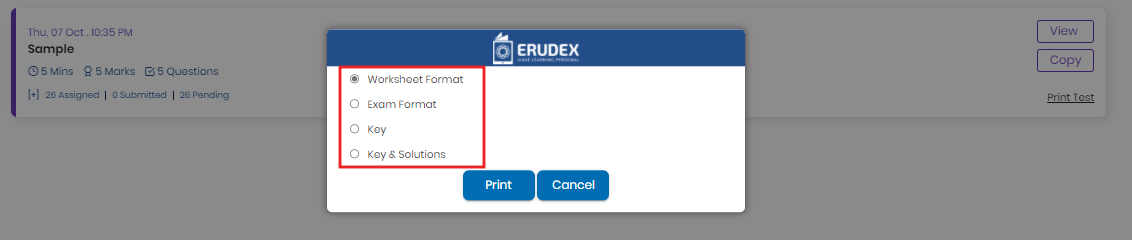
A popup with different printable formats will appear, users can select based on their requirement
Different types of print are as follows:
Worksheet Format
Exam format
Key format
Key & Solution format
How to Copy Published Test
For Copying Test teachers need to have published test
After logging into your Erudex Teacher account, select the Tests module
From the top right end corner, choose Curriculum.
Toggle to Subject test (if you have assigned with Competitive Curriculum)
Choose the Subject for which you'd like to copy the Test
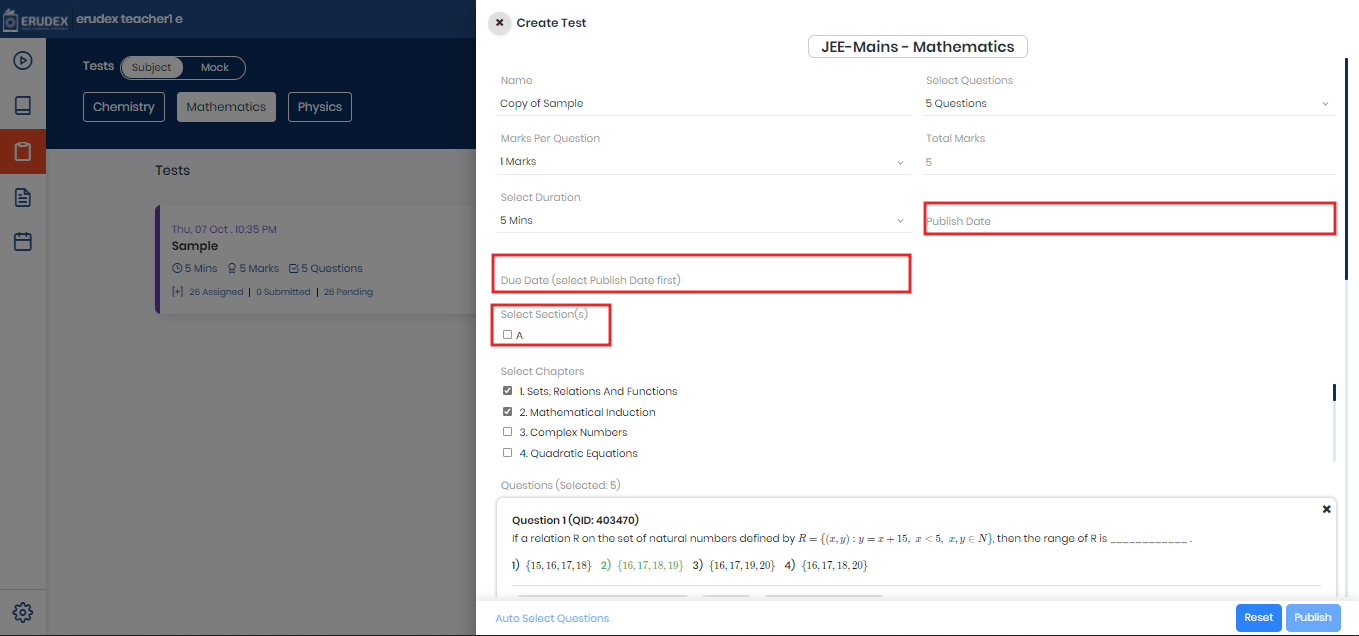
Click on the Copy button on the particular assessment which will open a copied slider filled with all the inputs
A teacher can change any of the fields if needed like changing the no of questions and publishing again etc.,
The main field need to be filled are Publish Date, Scheduled Date, and Sections to publish and click on Publish
How to View Student Submissions for Published Test
After logging into your Erudex Teacher account, select the Tests module
From the top right end corner, choose Curriculum.
Toggle to Subject test (if you have assigned with Competitive Curriculum)
Choose the Subject for which you'd like to view the Submissions
Viewing from Submissions List
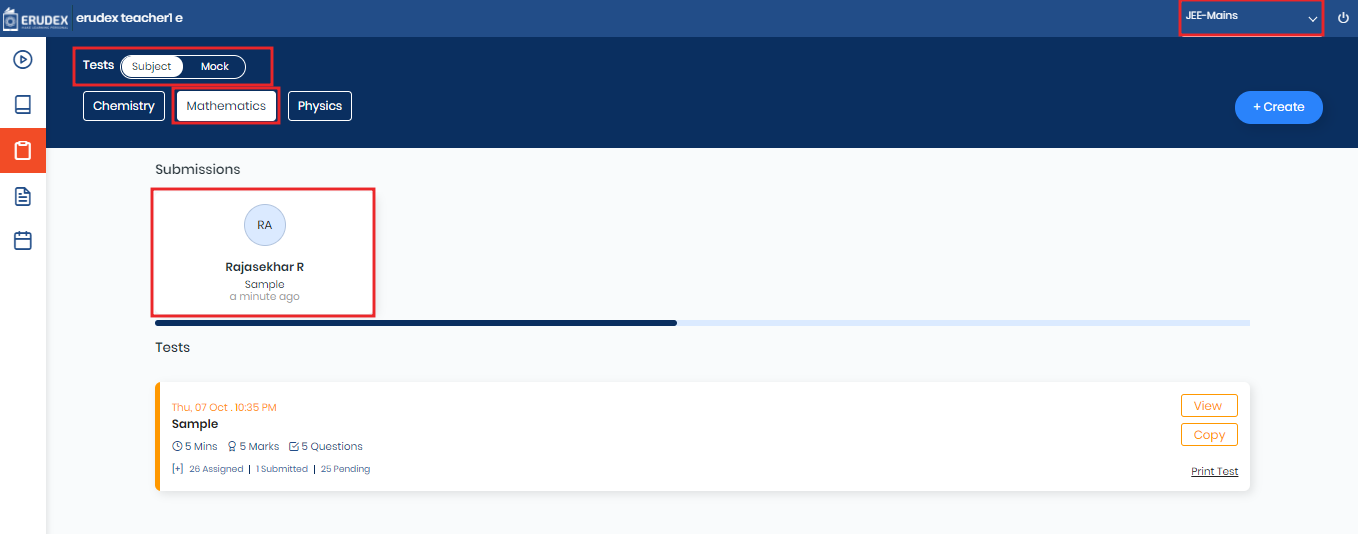
For Viewing, Results Teacher can view from Submission List
Submission List will show all the latest 10 submissions when the Teacher click on the student card it will show the result of the students as follows
Viewing from the test submission view
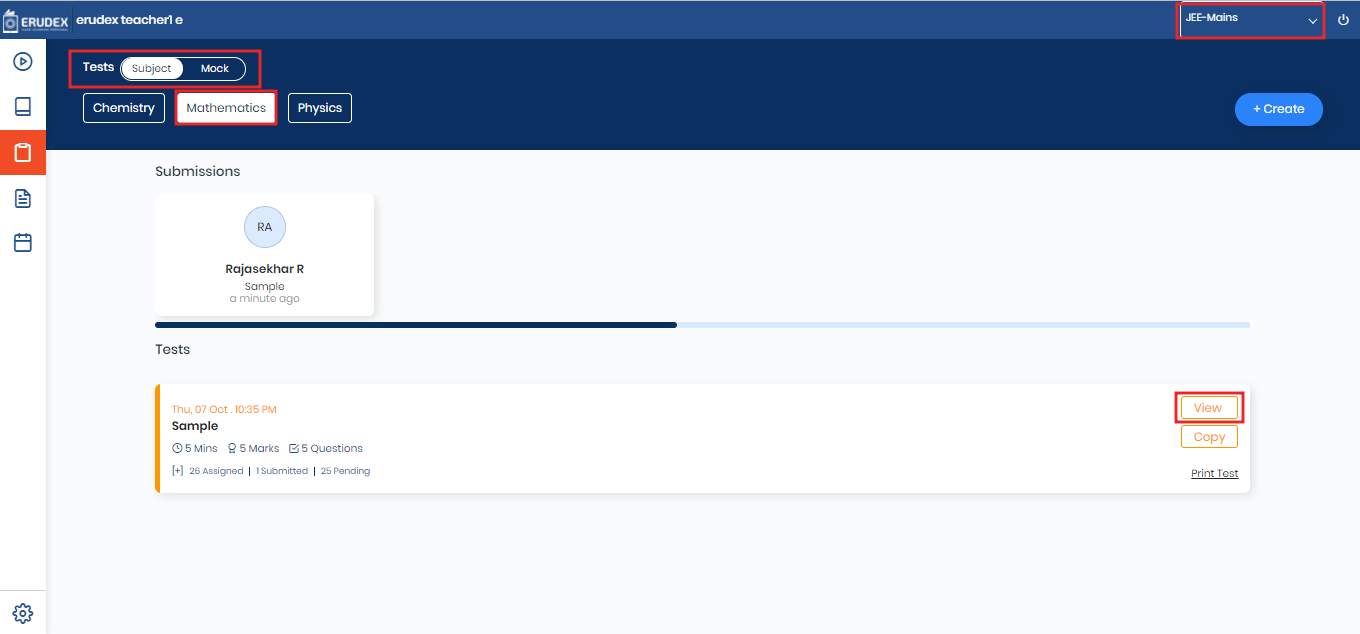
A teacher can click on view on the test card
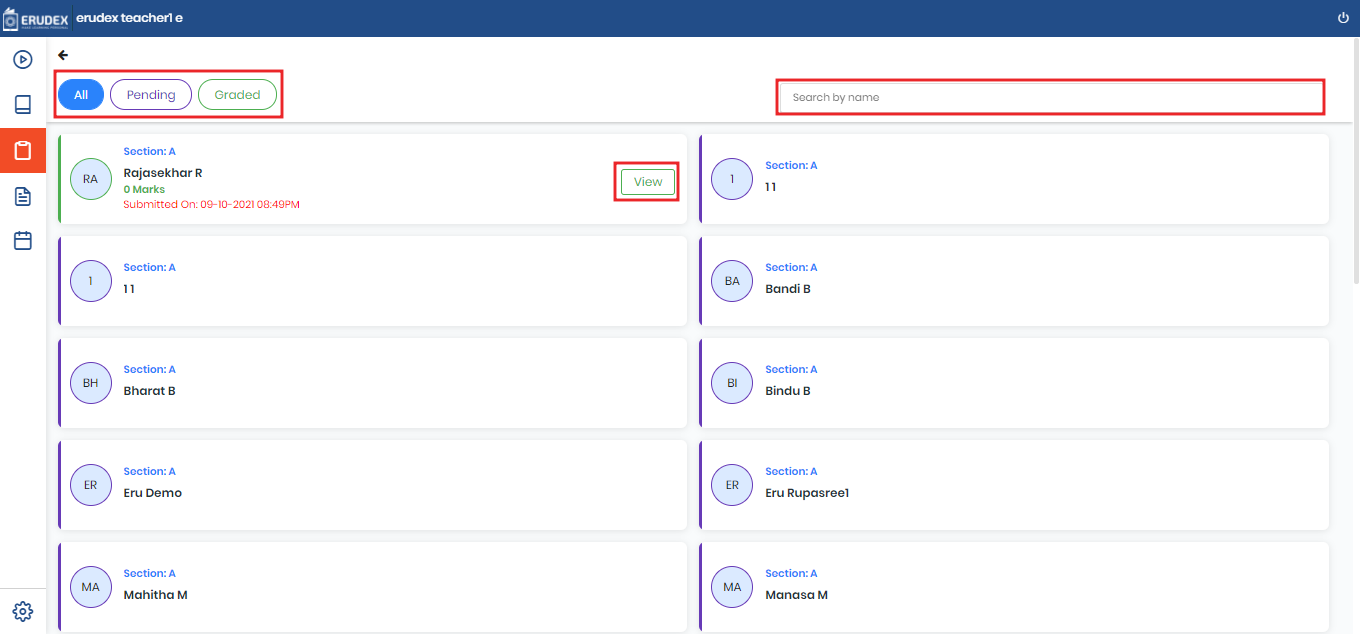
The following are the filters available to check the students:
All
Pending
Graded
Click on the Search bar and give name as an input or use filter Graded to get the list of the student who received their grades after submitting
Click on view on the Card besides the student name
Analyzing Student Result from Result view
After logging into your Erudex Teacher account, select the Tests module
From the top right end corner, choose Curriculum.
Toggle to Subject test (if you have assigned with Competitive Curriculum)
Choose the Subject for which you'd like to view the Submissions
Click on the view button
Click on the Search bar and give name as an input or use filter Graded to get the list of the student who received their grades after submitting
Click on view on the Card besides the student name
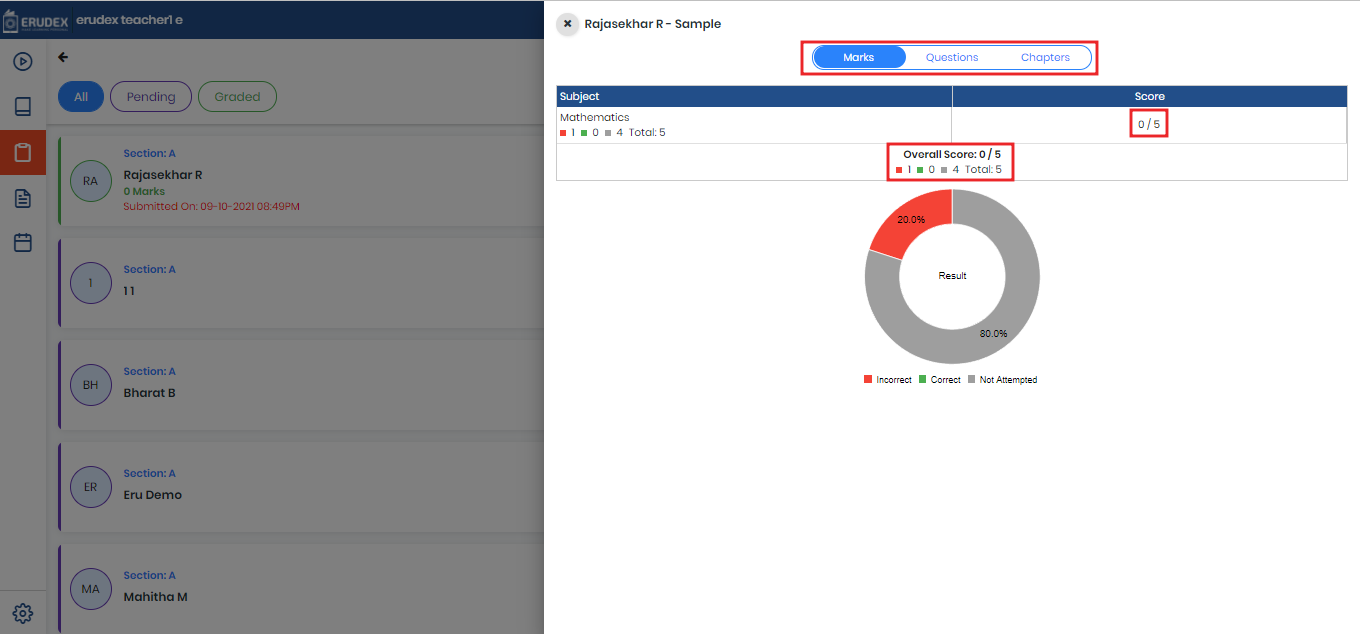
The reports will appear on the right-hand side with tabs as follows:
Marks: Users will get response Marks with the pie chart and the mark scoring distribution.
Questions: Users Can view the students marking for each level based on the subject filter. The Questions will show the legend as Correct incorrect and Not Attempted in Subject Wise.
Chapters: Users can view the chapter-wise marks distribution like Correct, Incorrect, and Not Attempted.
Mock Test
A Teacher needs to have a competitive curriculum for viewing mock test
A Teacher can view the test only when Data entry assigned to the teacher for approval
How to view Assigned Mock test
After logging into your Erudex Teacher account, select the Tests module
From the top right end corner, choose Curriculum.
Toggle to Mock test (if user assigned with Competitive Curriculum)
Select Available
Tests available for approval will be showing the menu with a button for View
Click on the view
A slider will show all the Questions based on the subject with the marks, Chapter, Level, Type of the test
Click on Approve to approve the test so the Dataentry can Publish to students
How to view Completed Mock test
After logging into your Erudex Teacher account, select the Tests module
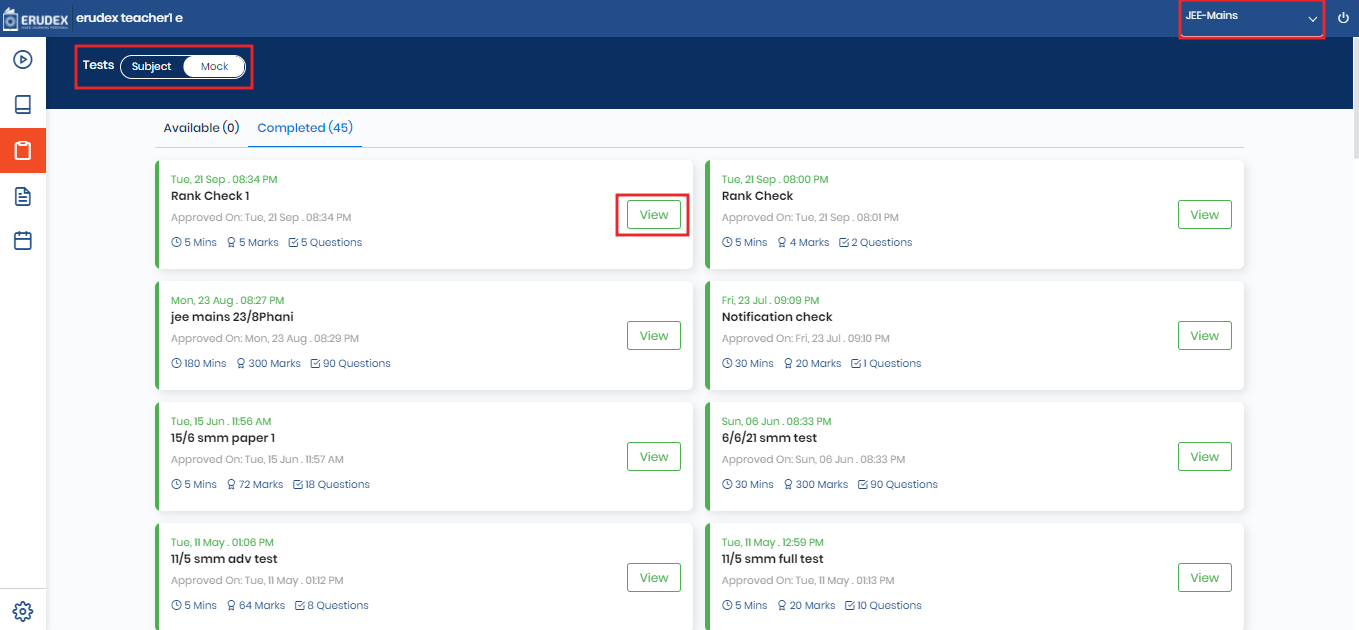
From the top right end corner, choose Curriculum.
Toggle to Mock test (if user assigned with Competitive Curriculum)
Select Completed
Tests approved in the past will be shown in the completed
Click on the view button on the required test, it will open A slider will show all the Questions based on the subject with the marks, Chapter, Level, Type of the test
How to Print Mock Test
After logging into your Erudex Teacher account, select the Tests module
From the top right end corner, choose Curriculum.
Toggle to Mock test (if user assigned with Competitive Curriculum)
Select Available
Tests available for approval will be showing the menu with a button for View
Click on the view
A slider will show all the Questions based on the subject with the marks, Chapter, Level, Type of the test
Click on print it will open a menu based on the format user required
Exam Format
Worksheet Format
Key
Key and solution
Select any format to print the test